1
Choose your audio
Select a recording from your device to see its waveform and hear the original. The file is read locally, without being sent to an application server.
 Silence Remover
Remove silence from audio in your browser, with adjustable cuts and a preview to help you keep the pauses that matter.
or choose one from your device
Try MP3 · WAV · M4A · AAC · OGG · OPUS · WEBM · FLAC · support varies by browserChoose a recording, adjust how long a quiet gap must be before it is cut, then listen to the result before saving.
Select a recording from your device to see its waveform and hear the original. The file is read locally, without being sent to an application server.
Start with Balanced. If soft words are cut or long gaps remain, adjust the quiet threshold, minimum silence, or pause padding and preview again.
Compare the original and processed versions. When the pacing sounds right, download the result. Your browser keeps the input format when it can encode it, or creates an MP3 otherwise.
Room tone, soft speech, breaths, and microphone noise can overlap in volume. Use these three controls together to shorten long gaps without rushing the conversation.
Set the threshold above the background sound in a gap but below the quietest speech you want to keep. Lower it if soft words disappear; raise it gradually if gaps remain.
This sets how long a quiet stretch must last before it is cut. A longer minimum helps preserve brief pauses in conversations and slower-paced speech.
Padding leaves a little audio around each detected speech segment. Increase it if word endings, breaths, or speaker changes sound abrupt after a cut.
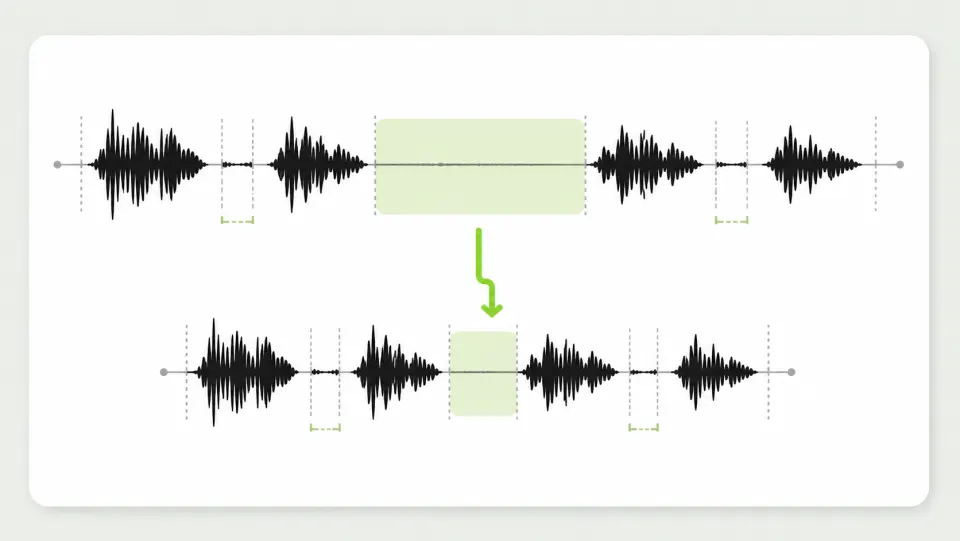
Spoken recordings often contain pauses worth keeping alongside gaps that slow the listener down. Choose settings that suit the recording, then check the transitions before sharing it.
Reduce dead air between answers, retakes, and setup moments before detailed editing. Start with Gentle or Balanced to leave more room for conversational pauses.
Shorten long gaps between narration lines, then listen for rushed transitions. Filler words, breaths, and background noise need separate editing; this tool does not identify and remove them.
Cut long waits in a lecture or meeting recording to make it quicker to review. Process one file at a time; practical length depends on your device, browser, and audio format.
04
Silence Remover detects sustained quiet sections and cuts their interior, leaving the padding you choose. It does not remove hum, echo, background noise, breaths, or filler words, or repair damaged speech.
The practical limits, formats, and privacy details.